Globals
Text Styles
They keep your design clean, consistent, and easy to manage. Instead of styling each text layer by hand, you define once and apply everywhere. It’s best to use them on every text element to keep things consistent across your project. Faster edits, fewer mistakes, and way smoother scaling as your design grows.
Text size matters in responsive design
You can define different font sizes at each breakpoint. While it’s optional, it’s worth doing right. Framer supports two main units for text sizing: pixels (px) and Rem.
Pixels (px)
Every font size is tied to a fixed number of screen pixels. Just make sure not to confuse this with pt, which is also pixel-based but behaves differently in some tools. Pixel sizing is straightforward but can be less flexible across screen sizes.
Root em (Rem)
Rem sizes are based on a root value, usually 16px, and all text sizes are calculated as a multiple of that base. In Framer, you can change the Rem base at each breakpoint, so your whole typography scale can adapt responsively without setting every value manually. Still, for best results, review your Rem sizes per breakpoint. Larger screens often benefit from a wider range than smaller ones.
See Rem in action by tweaking the base value per breakpoint in the Typography settings on the page.

Eg. set Base to 8px or 20px
3rem text
Text size is 3rem on 16px breakpoint base (not global style)
48px text
Text size is 48px (not global style)
How this template keeps text readable on every screen
This template uses Rem-based global sizing, with the following base values defined per breakpoint:
Desktop = 16px
Tablet = 15px
Mobile = 14px
Since text sizes would appear too small on mobile with this setup, I use breakpoint-specific overrides within the styles themselves to make sure everything stays readable. Of course, it is entirely up to you how you choose to configure these values.
Sometimes your visual design does not align with SEO best practices
Search engine crawlers do not care about visual flair. They only understand your content if the headings follow a proper semantic order (like h1 to h2 to h3). But that might not match your design vision. Fortunately, there is a simple trick that helps you get the best of both worlds.
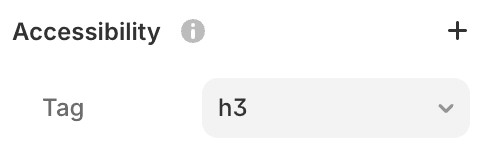
On every text element, you will find an Accessibility section in the right-hand panel with a Tag value. This is set based on the visual style, like H1 for large headings. You can freely change these tags. If something looks like a heading but should not be one for SEO, switch it to a paragraph (p). Or the other way around. This does not affect the design, it only defines the structure for search engines and screen readers.
For even better results, consider applying semantic tags to your stacks as well, such as section, article, or nav. This gives crawlers a clearer picture of your layout and improves both accessibility and SEO.