Globals
Components
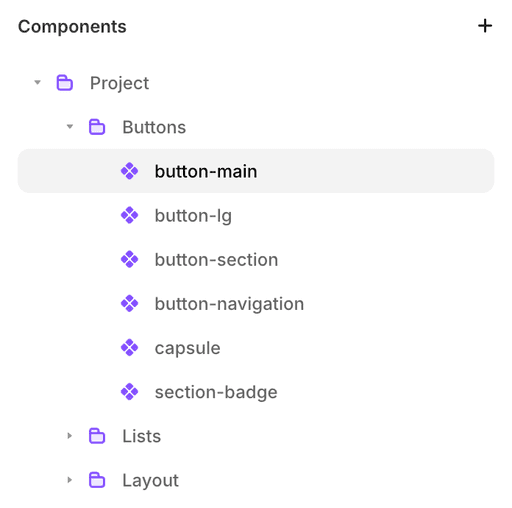
In Framer, a component is a reusable, customizable building block. You design it once and reuse it in multiple places across your site. Components are also required whenever you want to create more complex interactions for an element.
Components in your design system
Components in Framer work just like the ones you know from Figma or Sketch. They are reusable building blocks you edit once and use many times. Think buttons, cards, headers, and footers. Make one solid version, then reuse it across your site with small tweaks through variables.
Creating simple components
Take a button for example. You’ll need it in many places, but you don’t want to redesign or update it a hundred times if you decide to change something (rounded vs square corners, for instance).
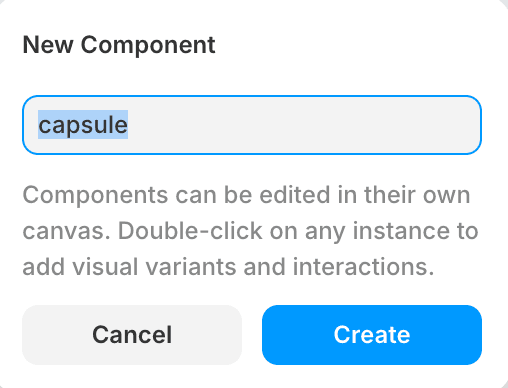
So you create a component the same way you build anything else in Framer: from stacks, text. Once your first stack or frame is ready, turn it into a component (Right click - Create Component).
This opens a new canvas where you can edit the component just like any other design, with layers and elements. Instead of breakpoints, components use variants.
In the Layers panel, elements are grouped by variant, while on the canvas you’ll see variants displayed side by side. The same responsive rules apply here: edits on the default variant cascade to all variants, but changes made on a variant only stay local to that one.
On the default variant (you can rename variants as you like), build your full design, including all the elements you might need across different versions even those that are not always visible. For a button, that might mean a label plus one or two icons (before and after the label).
Within a component, you can easily add hover and pressed states. These are stored as extra variants. Keep in mind they don’t inherit styles automatically, and you cannot reference one state inside another.
Play
Customizing with variables
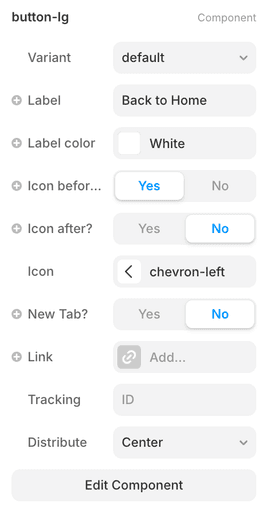
Once you create a component, you can make it flexible with variables. Change the text on a button, swap an icon, or apply a different color. All without breaking the structure. Practically anything with a + icon in the right-hand panel can be turned into a variable.
This way, the same component can look slightly different depending on where you use it, but the design foundation stays solid.
For buttons, you can even add the link as a variable. Just be careful not to run into an optimization error by nesting one linked component inside another link.
Components for interaction
Components are not just for consistency, they also make interactions possible. Anytime you want an element to have multiple states, you’ll need a component.
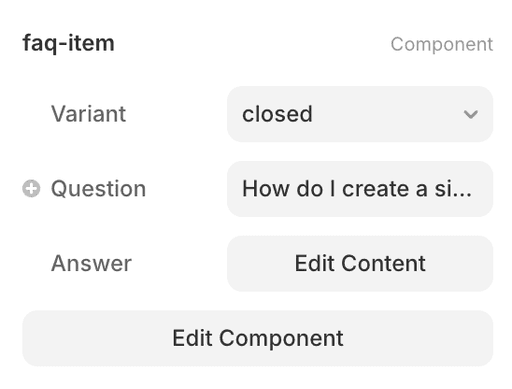
Think of a FAQ item. It has two states: closed and open. In the closed state, you only see the question. In the open state, the answer slides into view. The animation between the two is handled inside the component.
This way, you don’t have to rebuild the logic for every FAQ item on the page, you just reuse the component.
Adding interactions
Inside a component, you can add interactions that switch between states.
For example:
Tap → toggle between open and closed
Hover → change color or show an underline
Click → trigger a variant change with animation
States in Framer live as variants, and you can freely define how they transition. For components, you’ll find this at the very top of the right-hand panel.
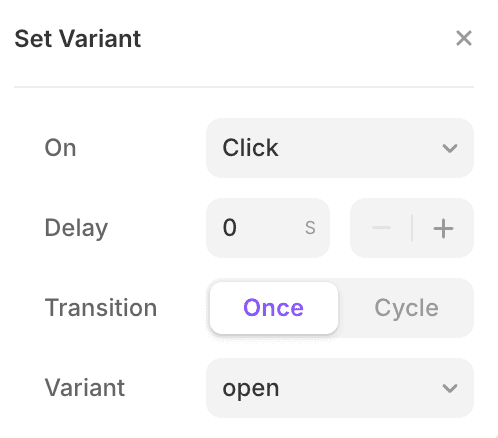
Interaction events
Just like visual properties, interactions can also be exposed as variables. This lets you define in the component what should happen on a click or tap, and then connect it directly on the page.
For example, a button component can expose its onClick event as a variable. On the page, you could connect it to navigation, opening a modal, or triggering another action.
This makes your components far more flexible and reusable across different contexts.
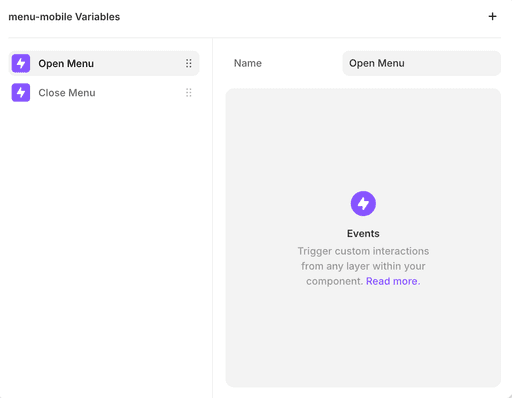
Breakpoints in components
Components should be responsive too. You can design different layouts for desktop, tablet, and mobile all within the same component. But breakpoints work a bit differently here: you need to set them up as separate variants. On the page, you can then choose which variant shows at each breakpoint.
It sounds neat, but be careful in your design. A complex interactive component can quickly explode in the number of variants if the base is not designed well.
Think of it this way: if your default variant is a full-width element with three states triggered by interactions, you’ll need to recreate all of them for tablet and mobile as well. That means not three variants, but three times three.
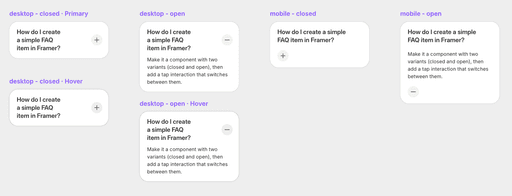
Components for CMS
Now that you understand what components are and how to use them, it’s easy to see how they work with CMS items.
The key here is variables. You can connect variables in your component to CMS fields. When the CMS provides content, it overrides the default values in your component.
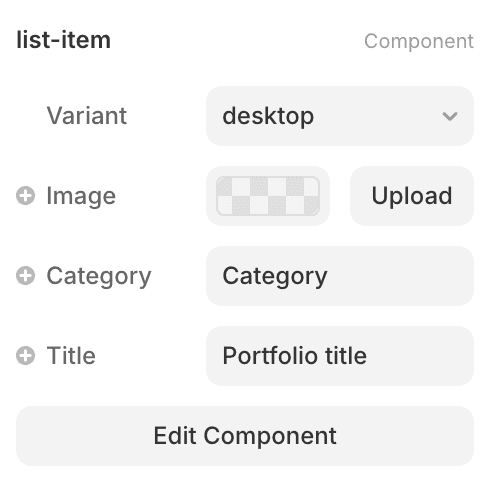
For example, in a portfolio list item component:
The cover image is replaced with the portfolio’s featured image
The title text is filled with the portfolio title
Categories or tags are displayed automatically
The link (slug) is applied so the item points to the correct post page
This makes your CMS-driven pages consistent, scalable, and much easier to maintain.




Nested components
A nested component is simply a component placed inside another component. It sounds simple, but it is one of the most powerful ways to build scalable designs in Framer.
Think of it as flexibility: you can swap nested parts without breaking the parent structure. It also gives you consistency: if you update the nested component, it updates everywhere it’s used.
Watch out for links: If you place a component that outputs a link inside another component that also outputs a link, you create nested links. Nested links are not valid HTML. In Framer this will surface as an optimization error when you preview or publish. This is not a Framer bug. It is how the web platform works.
" width="37.29578466774624px"><path d="M 0 0 L 37.296 0 L 37.296 55.943 L 0 55.943 Z" fill="transparent" height="55.94321909407299px" id="c9oofRDV3" width="37.29578466774624px"/><path d="M 0 9.324 C 0 4.175 4.174 0 9.324 0 C 14.473 0 18.648 4.175 18.648 9.324 C 18.648 14.473 14.473 18.648 9.324 18.648 C 4.174 18.648 0 14.473 0 9.324 Z" fill="rgb(26, 188, 254)" height="18.64782691850934px" id="TFBE4qsrt" transform="translate(18.643 18.643)" width="18.647826918509352px"/><path d="M 0 9.324 C 0 4.175 4.174 0 9.324 0 L 18.648 0 L 18.648 9.324 C 18.648 14.473 14.473 18.648 9.324 18.648 C 4.174 18.648 0 14.473 0 9.324 Z" fill="rgb(10, 207, 131)" height="18.647826918509352px" id="qAnnLGcnu" transform="translate(0 37.352)" width="18.647826918509352px"/><path d="M 0 0 L 0 18.648 L 9.324 18.648 C 14.473 18.648 18.648 14.473 18.648 9.324 C 18.648 4.174 14.473 0 9.324 0 Z" fill="rgb(255, 114, 98)" height="18.6476960877818px" id="BmRi_O1L_" transform="translate(18.643 0)" width="18.647826918509352px"/><path d="M 0 9.324 C 0 14.473 4.174 18.648 9.324 18.648 L 18.648 18.648 L 18.648 0 L 9.324 0 C 4.174 0 0 4.175 0 9.324 Z" fill="rgb(242, 78, 30)" height="18.647826918509356px" id="aAfcxWugP" width="18.647826918509352px"/><path d="M 0 9.324 C 0 14.473 4.174 18.648 9.324 18.648 L 18.648 18.648 L 18.648 0 L 9.324 0 C 4.174 0 0 4.175 0 9.324 Z" fill="rgb(162, 89, 255)" height="18.64782691850934px" id="L41XXQBQT" transform="translate(0 18.643)" width="18.647826918509352px"/></g></svg>)
Maintenance and consistency
One of the biggest advantages of components is that you only need to update them once. Any changes you make to the main component flow through to every instance across your site.
This saves you time, but more importantly, it keeps your design consistent. Headers, footers, buttons, or cards will always follow the same rules and styling, no matter how many times you use them.
When your project grows, this becomes essential. Instead of hunting down dozens of slightly different versions, you know that everything is tied back to a single source of truth.